Call it what it is: Instant mobile connection
Need to check in fast with your colleague, team, or cross-functional group? Blink’s voice and video calling lets employees make direct 1:1 or group calls right from chat — no links, no waiting rooms, no fuss.


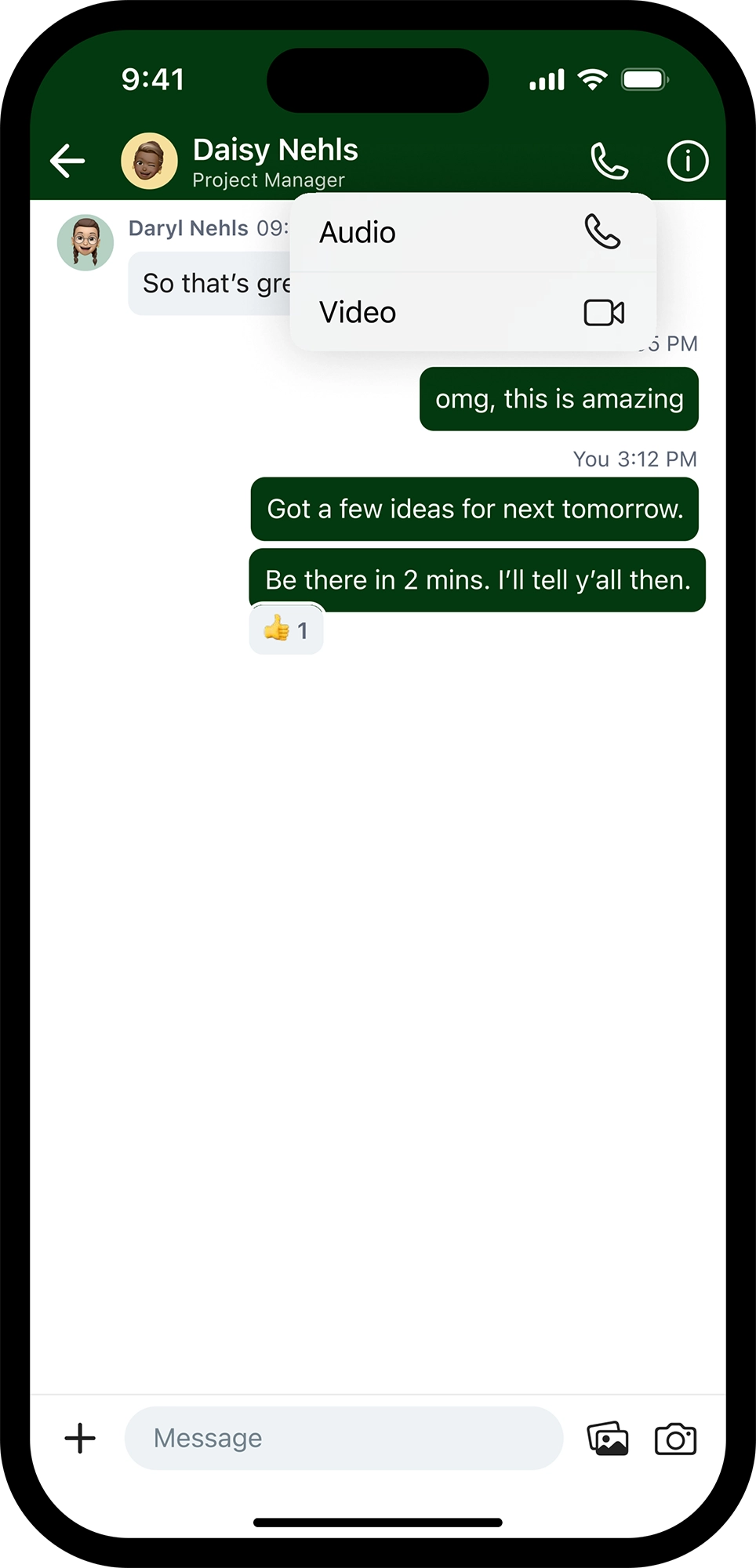
Start calls with a single tap
Call any colleague directly from a 1:1 chat or their profile. Available on mobile and web.
Bring teams together instantly
Start a group call from any chat or channel. Up to 50 participants can join with a single click — no extra downloads required.
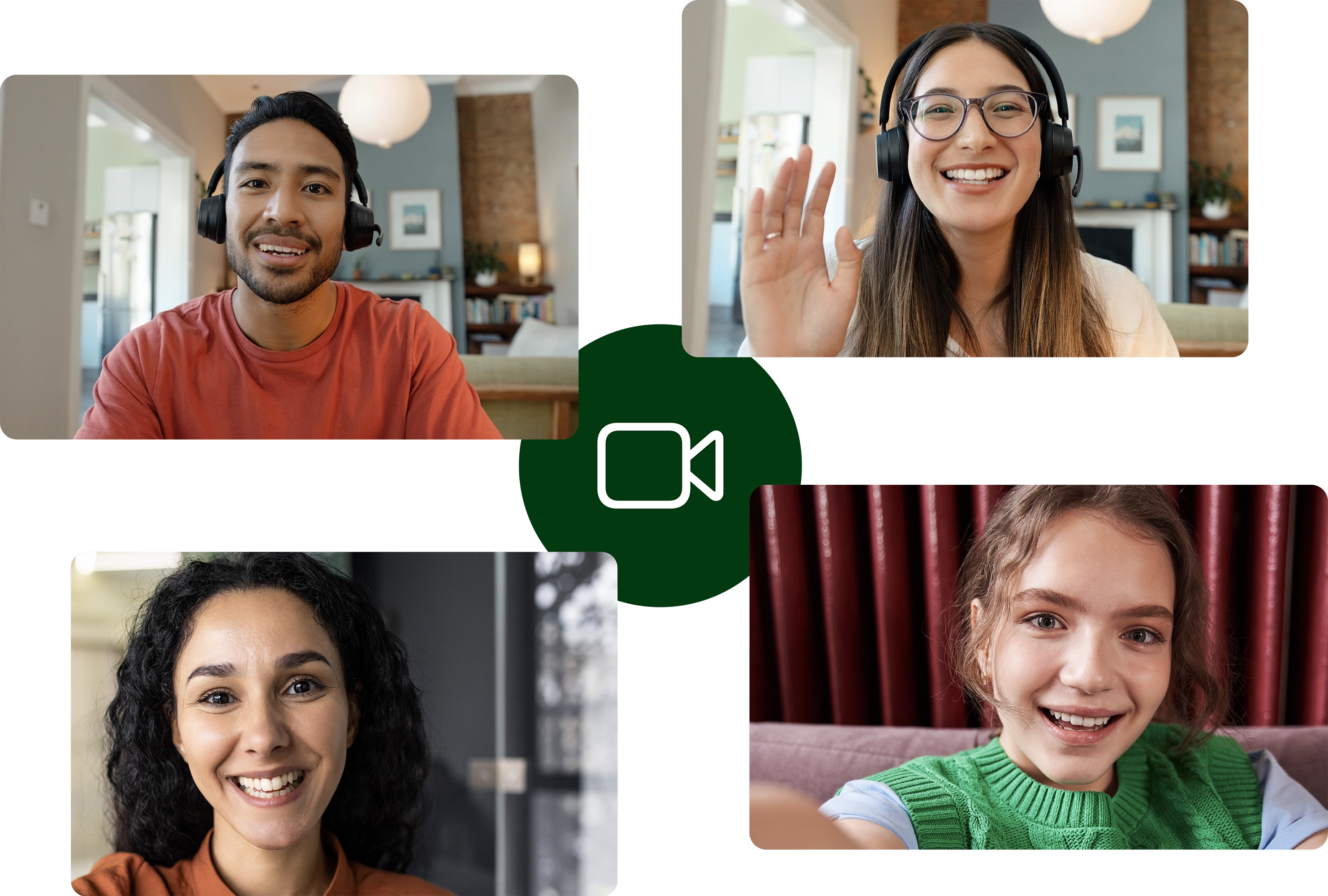

Stay in control of your call
Mute, unmute, flip cameras, change layouts, or pin users to customize your call experience. It’s all at your fingertips with a modern, mobile-friendly format.
Unlock a new era of internal communication with voice and video calling:
Streamline communication
Why bounce between apps? Keep conversations in one place with native calling that fits naturally into your existing comms workflows.
Power global teamwork
Ideal for distributed and international teams — making fast, personal communication easy no matter the time zone.
Scale with your needs
This add-on feature is priced per user and built for future flexibility — with group calling, desktop expansion, and more on the way.
Trusted by the world's leading brands


.svg)
.svg)






What is voice and video calling in Blink?
Blink's built-in voice and video calling lets employees make real-time 1:1 or group calls directly from the app — no external tools, meeting links, or waiting rooms needed. Calls can be started from a colleague's profile, a 1:1 chat, or any group chat or channel, on both mobile and web.
How many people can join a group call?
Up to 50 participants can join a group call. Simply start a call from any group chat or channel, and members can tap "Join call" to hop in. If you need to host larger calls, contact your Customer Success Manager or the Blink Support team to discuss options.
What in-call features are available?
On both mobile and web, you can mute/unmute your microphone, turn your camera on or off, and leave the call at any time. On mobile, you can also flip your camera, view participants, pin a user's video, and change your call layout (grid, full screen, or spotlight). On web, you get screen sharing, the ability to minimize the call window so you can keep working, and a shareable join link to invite others.
Can I share my screen during a call?
Yes — screen sharing is available for web users. When in a call, click the share screen icon and select which screen or window you'd like to share. All other participants will be able to see your screen in real time.
Do Blink calls respect Do Not Disturb settings?
Yes. If you have Do Not Disturb enabled, you won't receive incoming calls and no missed call notification will appear in Blink. On mobile, missed calls are logged via your device's native call log behaviour.
Do I need to be in the Blink app to receive a call?
On mobile, no — incoming calls are delivered to your device just like any other phone call, even if the app isn't open. On web, your Blink app or browser tab needs to be open for you to receive the call.