


What is Blink's employee news feed?
Blink’s employee news feed is a shared stream of company news on every employee’s own phone. Everyone sees what’s relevant to their site and role, while comms controls what’s pinned, who sees it and who has read it.
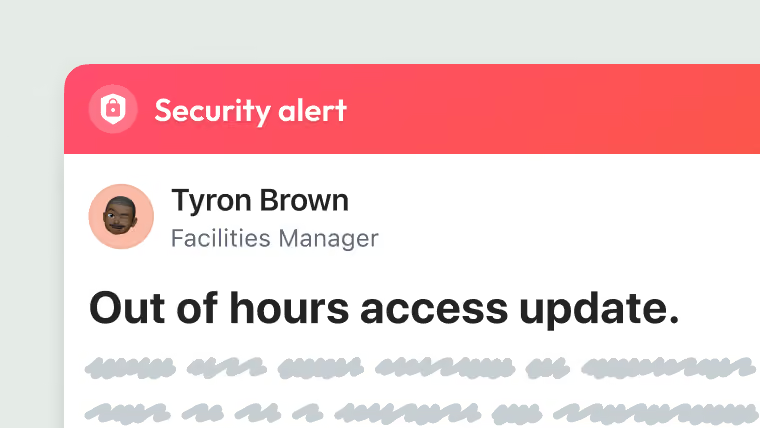
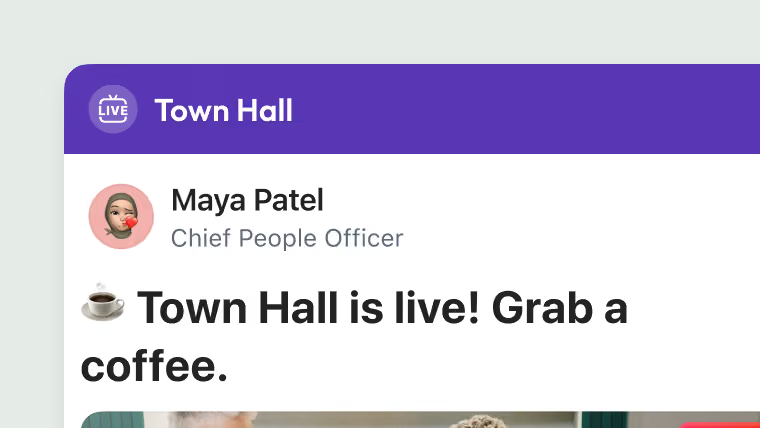
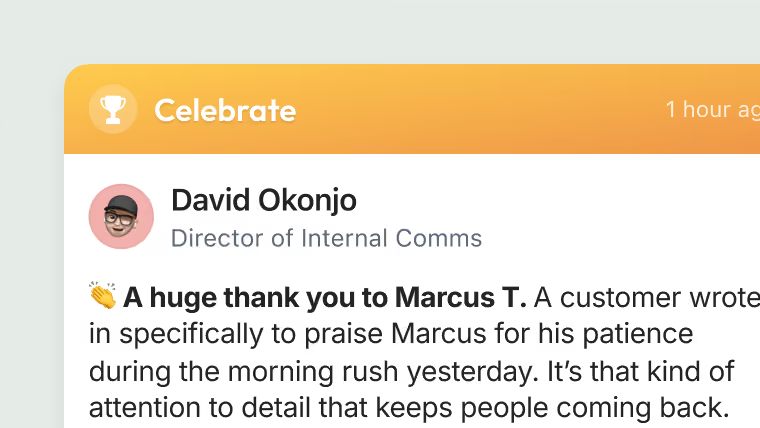
Open to everyone, managed by you
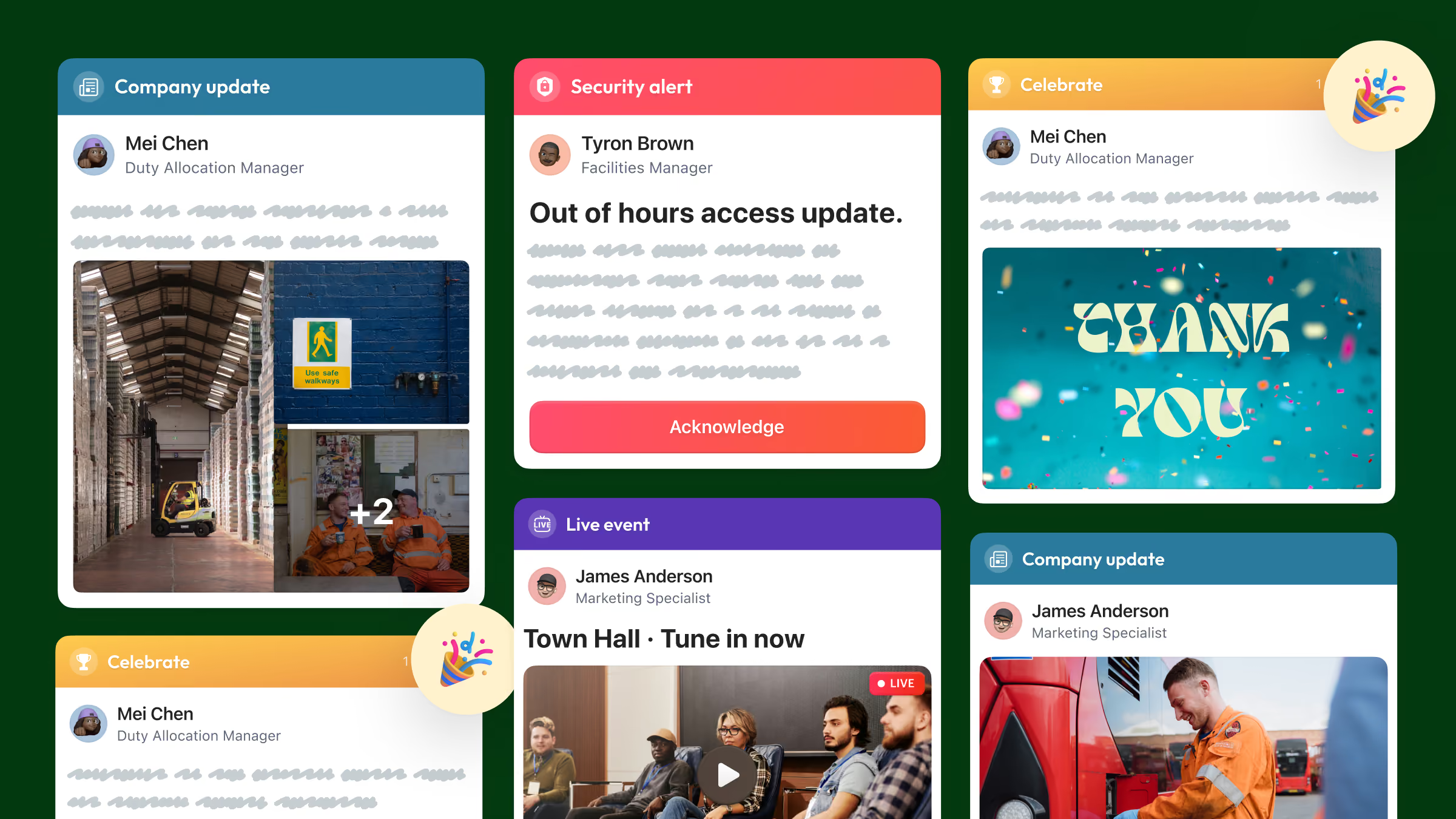
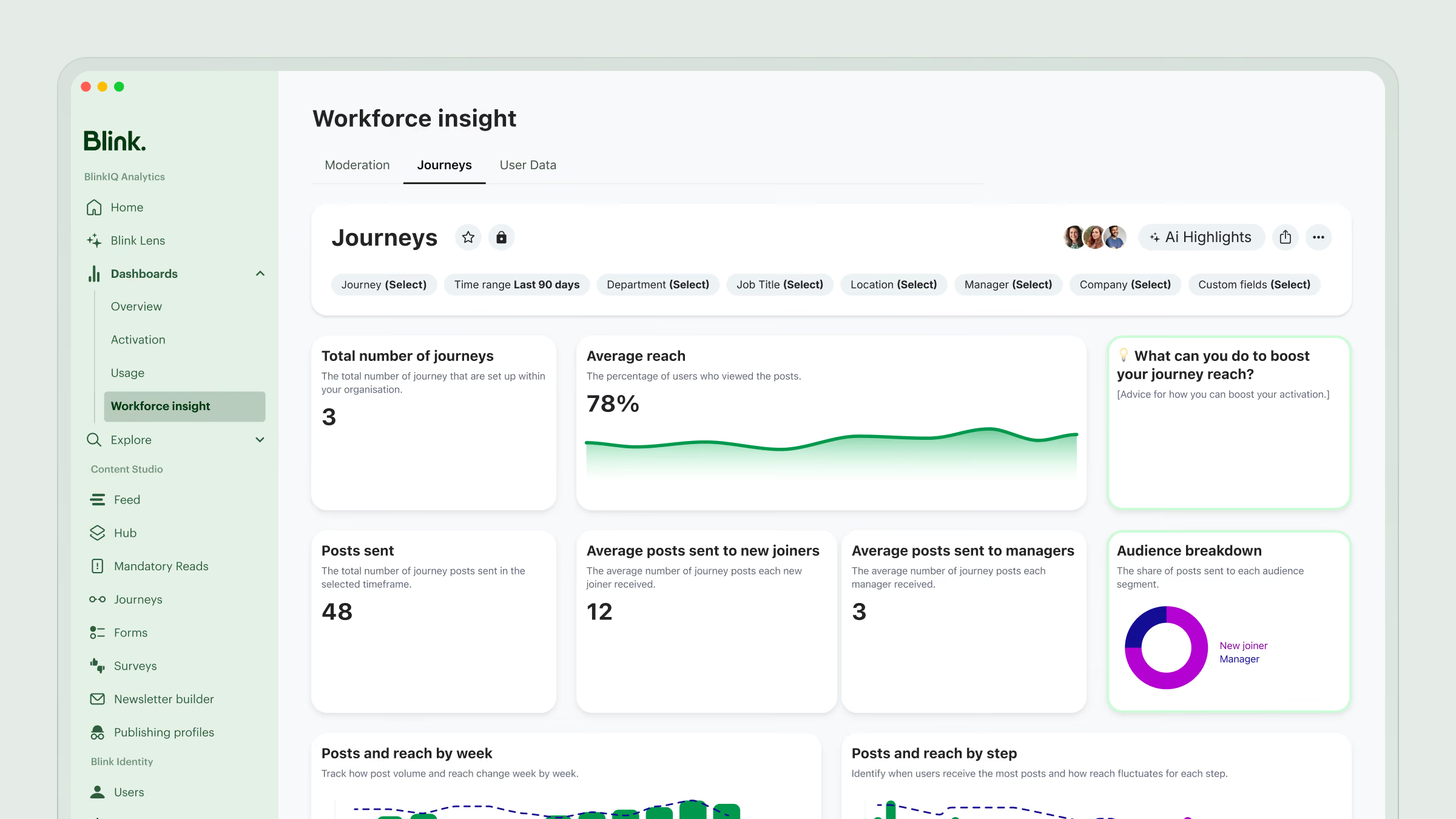
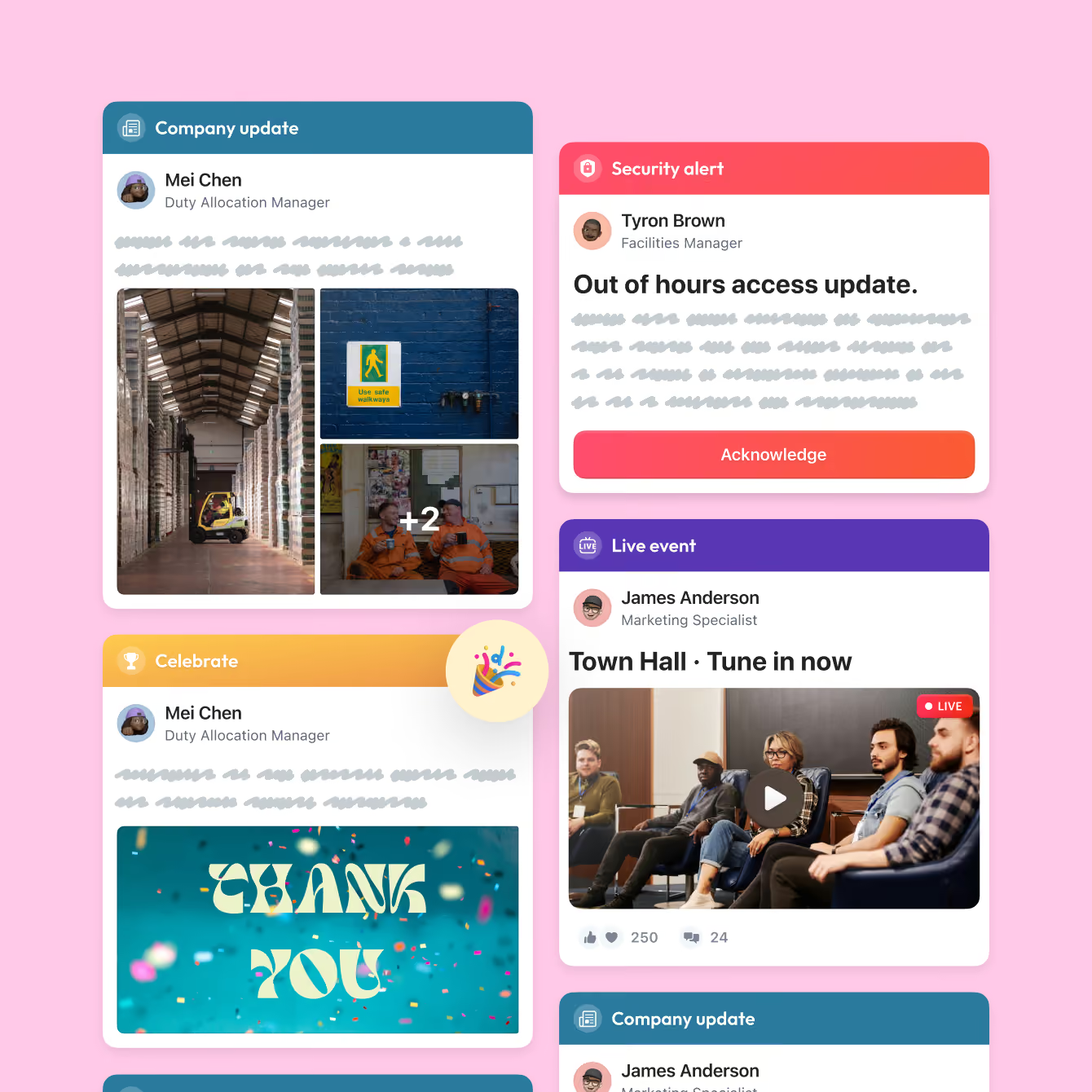
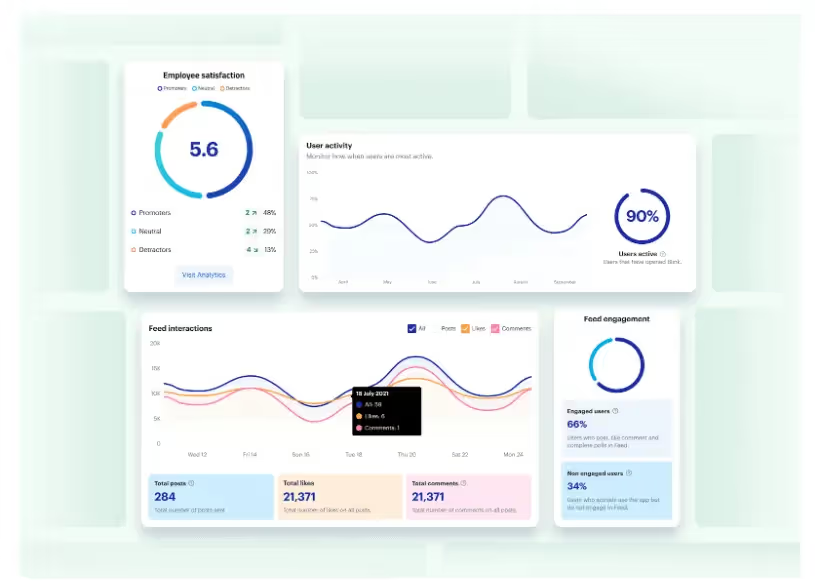
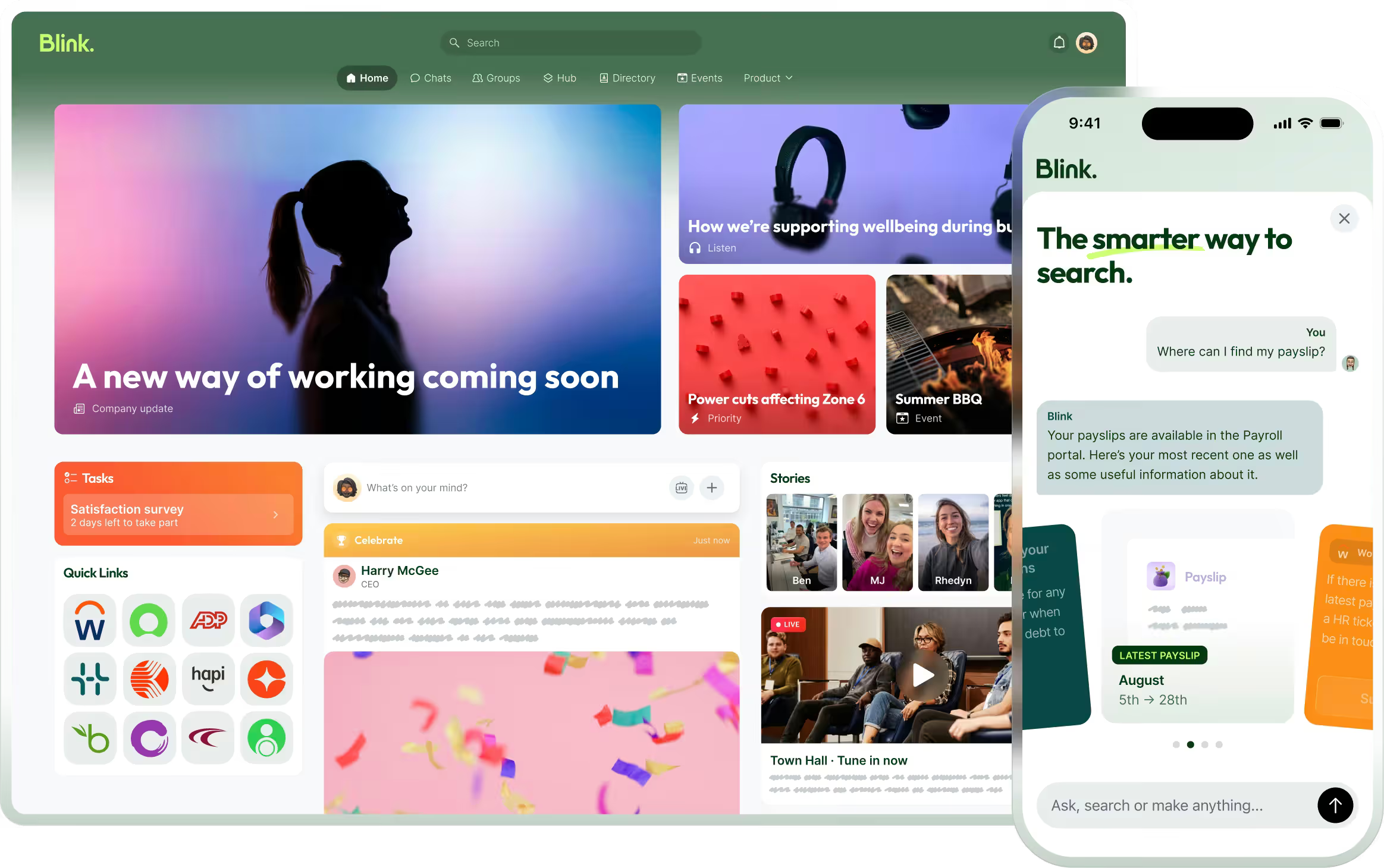
Every post in the Blink feed has two sides. Employees see a simple, familiar feed on their own phone. Comms sees the audience, the pin, and who has read and acknowledged it, as it happens.
What your teams see
One tap to read, one tap to confirm. Priority posts stay pinned at the top until people do.
What comms sees
Who it went to, who has read it, and who still needs a nudge, updating as people open Blink.
How Blink’s employee news feed works
Blink’s employee news feed takes an update from draft to confirmed read in six steps: write it, choose who sees it, pin it, collect acknowledgments, read replies, and measure what landed.
Write it, or let Blink Assist start it
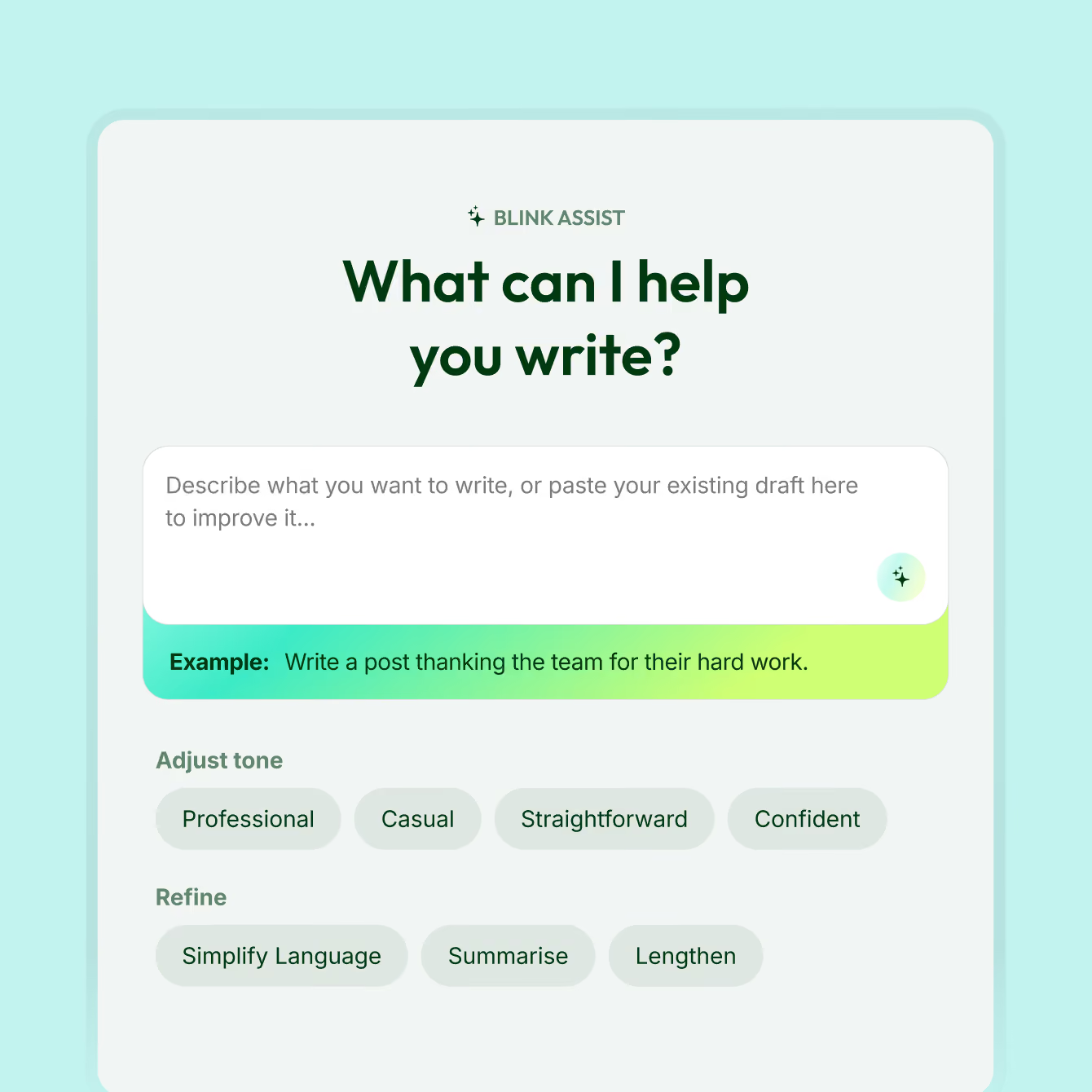
Draft a post from your phone or desktop, or give Blink Assist a quick prompt and get a first draft in seconds. It can also polish a message you’ve already written before you send it.
Send it to the people it’s for
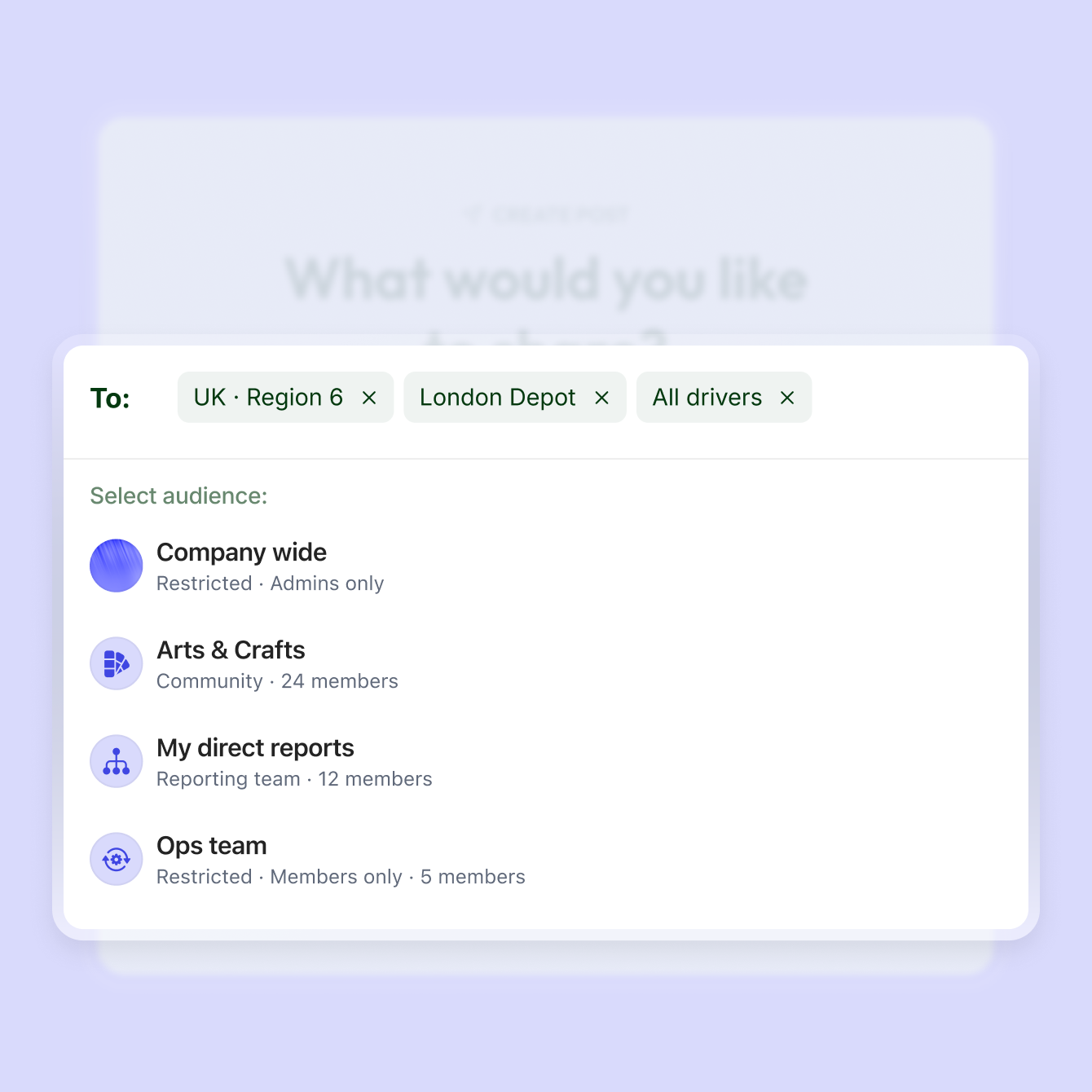
Post to one team, one site, a region, or the whole company. Every feed stays relevant to the person reading it, so people keep paying attention instead of scrolling past news that isn’t for them.
Make sure the big things get seen
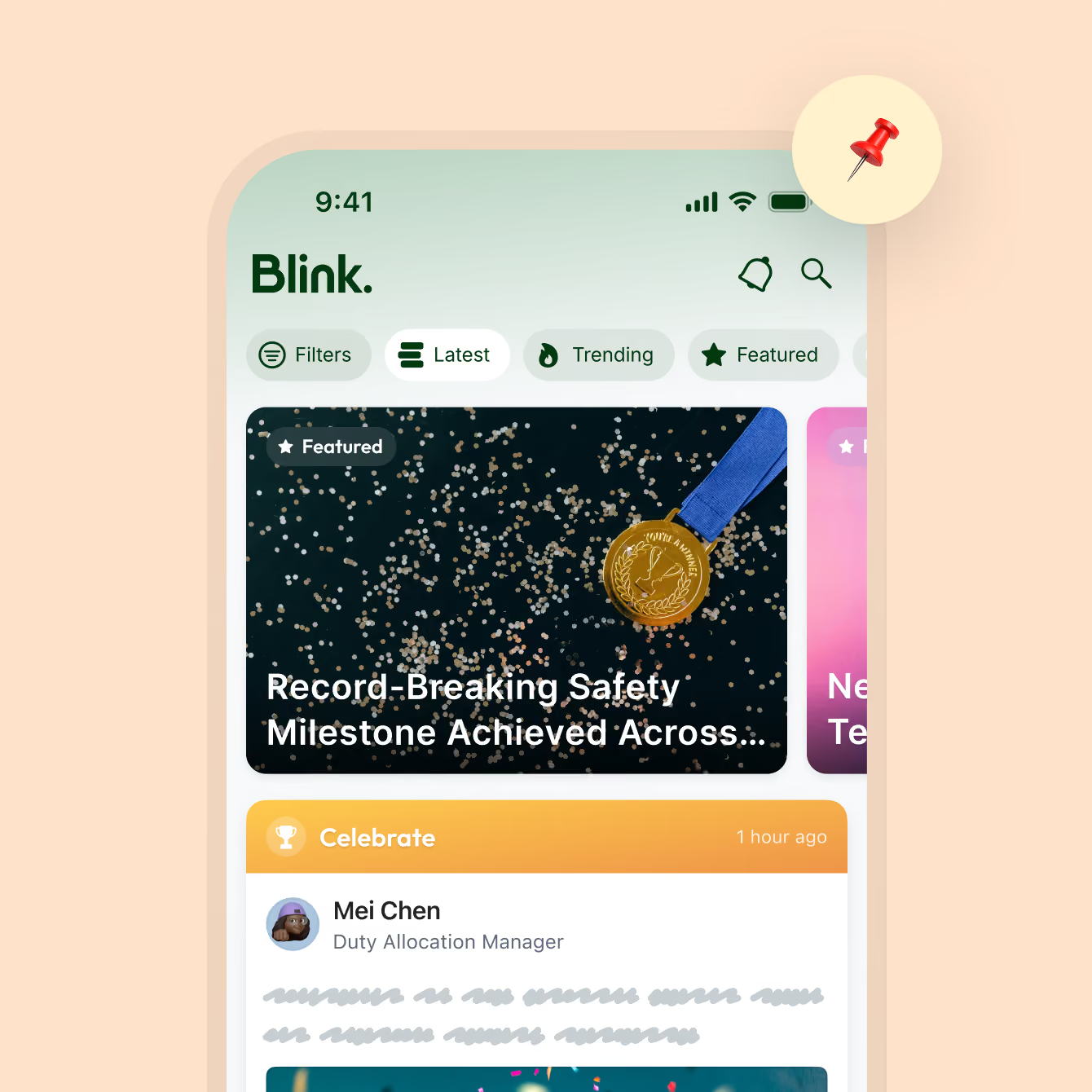
Leaders decide what the feed shows first. Pin and feature the posts that matter most, and they stay at the top where everyone sees them, instead of sinking under everything posted after.
Post far more than announcements
Share photos and videos, run a quick poll, celebrate a team win, or send an update people must confirm they’ve read. Whatever you need to say, there’s a format that fits.
Reactions and comments, built in
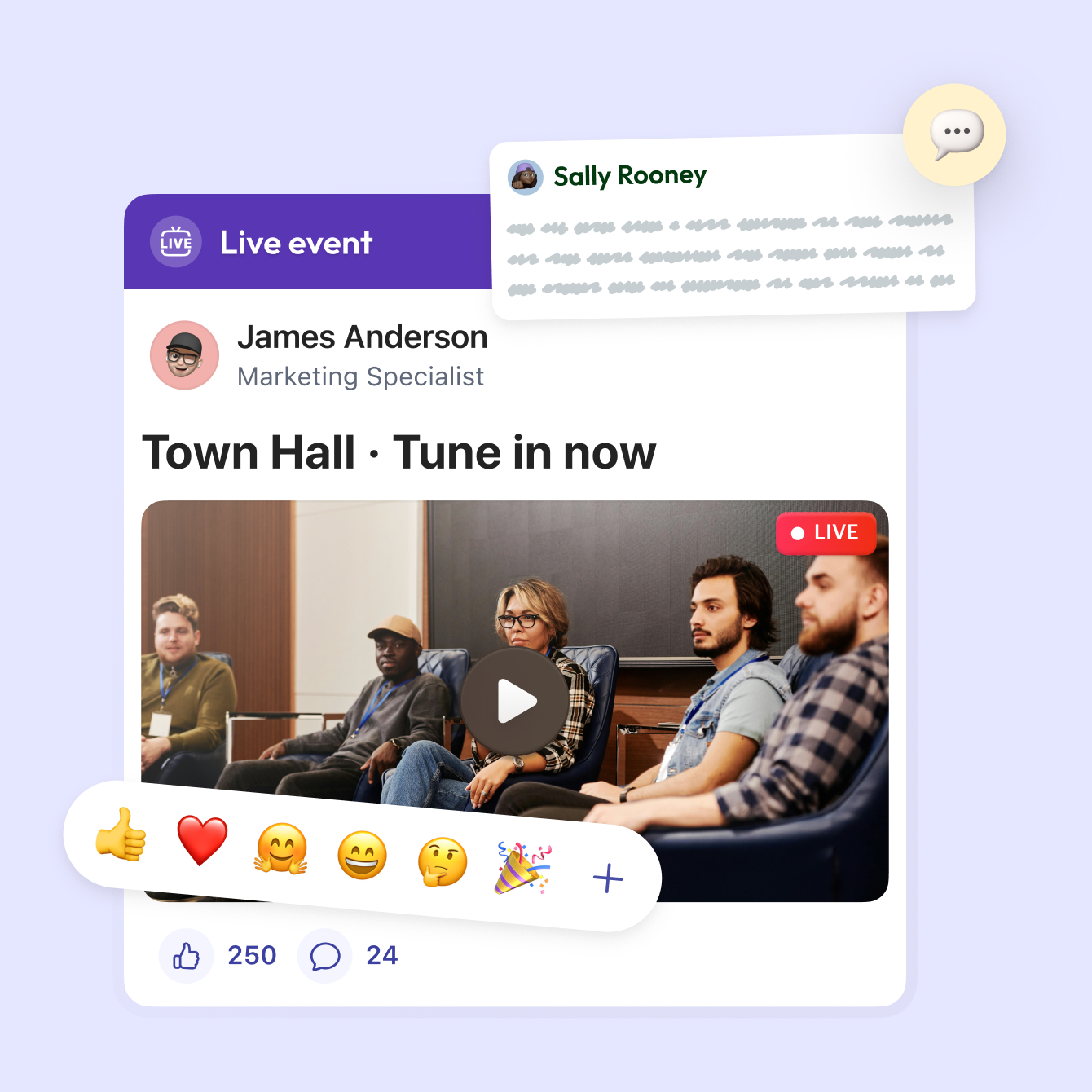
People like, react, and comment the way they already do on the social apps they use every day. Questions get answered in the thread, and good news travels across sites on its own.
Know exactly how every post landed
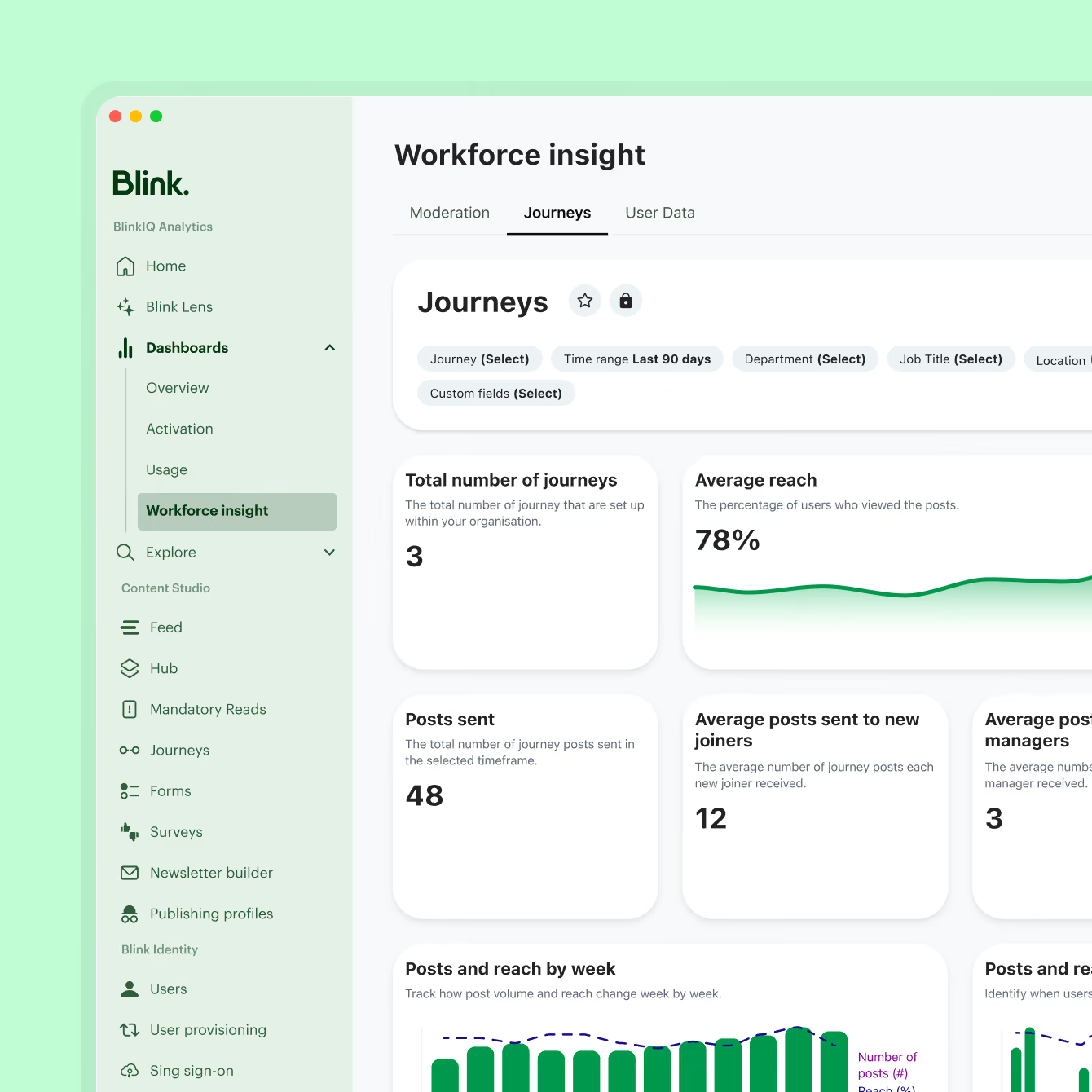
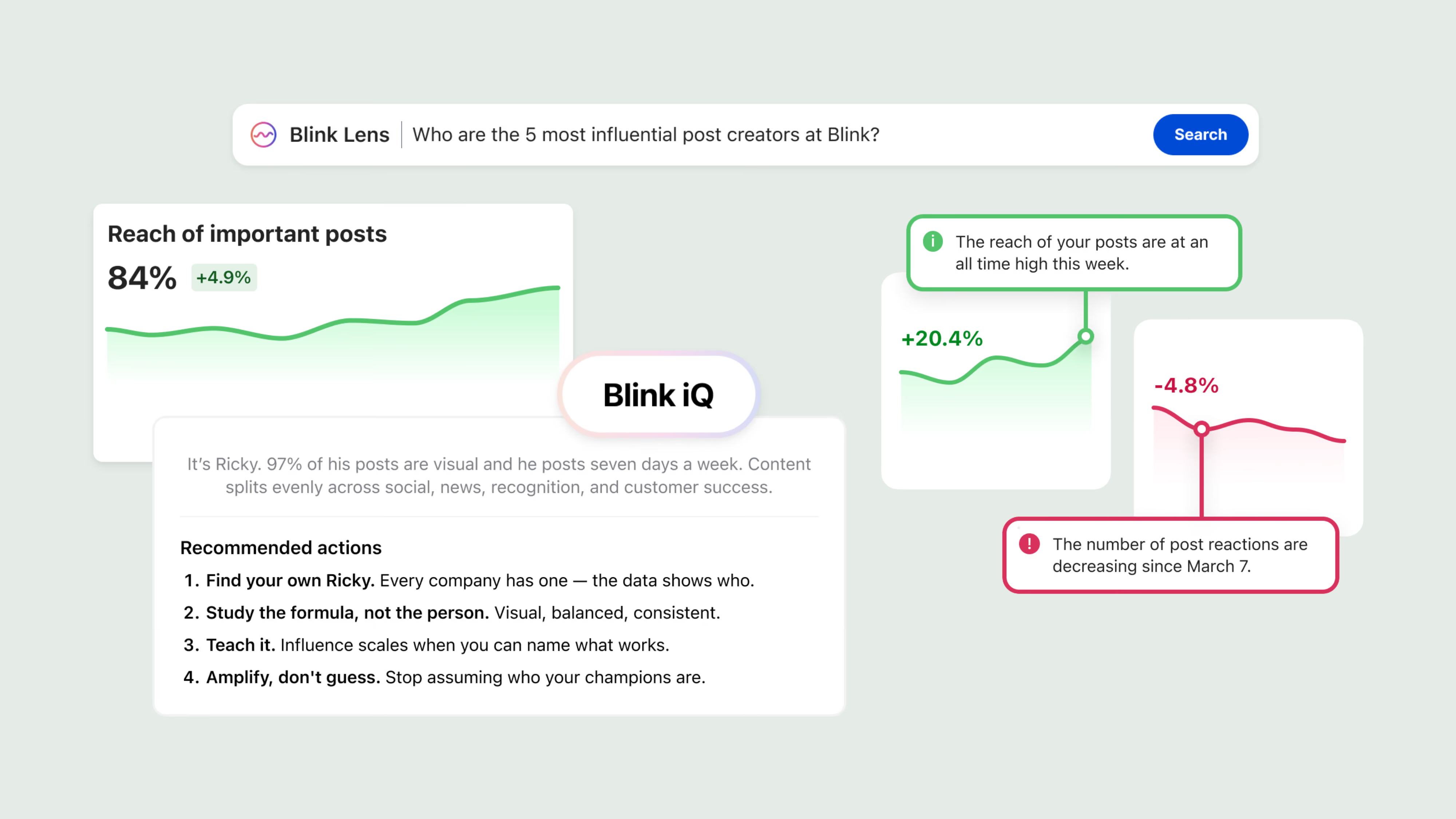
In-depth analytics show reach, reads, reactions, and comments for every post, so you can see what’s working, spot what isn’t, and report on it with confidence.

What if someone posts something they shouldn't?
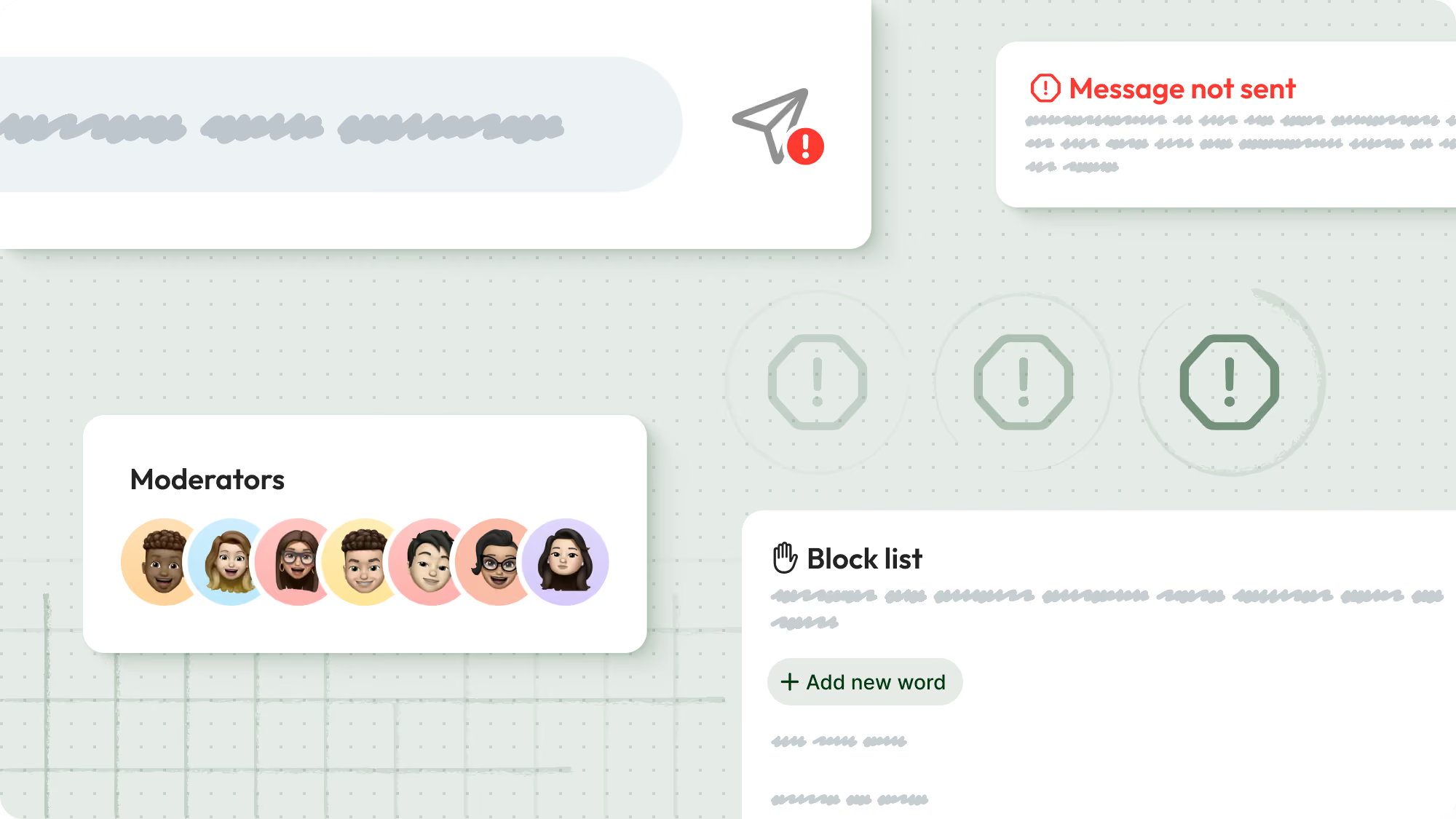
An open feed works because you set the rules. Blink admins decide who can post where, which posts need approval, and who moderates each audience, so the feed stays useful without becoming a free-for-all.
How the Blink feed works for every team

Reach the right people and prove it
Plan the week's posts, send each one to the right sites and teams, and pin the updates that need a confirmed read. Post insights show reach, read receipts, likes, and comments for every update, so you can report on what landed and shape what you post next.

Know every site has the new procedure
Send a new procedure or safety change as a priority post and see acknowledgments come in site by site. Area managers know which locations have confirmed and follow up directly, while wins from strong sites get shared where every location can see them.

Secure, connected, and simple to run
The feed runs inside Blink, with single sign-on and audiences that update as people join, move, or leave. Systems like Workday and ServiceNow can post cards straight into the feed, so launches and service notices reach people where they already look.

Company news on their own phone
Frontline employees open Blink on their own phone and see company news, their site's updates, and anything needing acknowledgment at the top. They post photos of team wins, comment on colleagues' posts, and get replies from leaders in the same thread.
Every feature you need to reach your frontline
Blink Feed gives internal comms teams the tools to create, automate, target and measure every post, so the right message reaches every employee, on any shift.


Continue exploring
























































Frequently asked questions
Internal communication is how an organization shares information with its own employees, from leadership updates and policy changes to safety alerts and everyday team news. It covers announcements from the top as well as two-way conversations between employees, managers, and head office, across channels like email, intranets, employee apps, and in-person briefings.
Internal communications are aimed at employees, while external communications are aimed at customers, investors, the media, and the public. The two should tell the same story, because employees are often the first people customers ask about company news. Read more about internal and external communications.
The main internal communication channels are email, intranets, employee apps, team messaging, video and live streaming, digital signage, and in-person briefings. For frontline and deskless teams, mobile channels matter most, since many employees don’t have a company email or a desk to check. See our guide to internal communication channels.
Good internal communication is timely, targeted, and easy to act on. Examples include a safety alert sent only to the affected sites, a town hall streamed to every phone with a recording for later shifts, and a policy update that asks each employee to confirm they’ve read it. Explore more internal communication examples.
The best internal communication platform for frontline teams is one employees can use on their own phone without a company email, that can reach them when they’re off the app, and that shows who has read each message. Look for audience targeting, read tracking, acknowledgment for mandatory updates, and formats like video and live streaming that suit people on shift. Blink, for example, lets employees join with a QR code or magic link and gives comms teams read and sign-off data on every critical update.
The main types of internal communication are top-down updates from leadership, bottom-up feedback from employees, peer-to-peer conversations between colleagues, and critical communications for urgent or safety-related updates. Most organizations need all four, delivered through channels their whole workforce can reach.
Digital signage shows updates on screens in shared spaces like break rooms, warehouses, and store back offices, which makes it useful for reaching people as they pass by. It works best alongside a mobile channel, because a screen can display a message but can’t confirm who read it.